
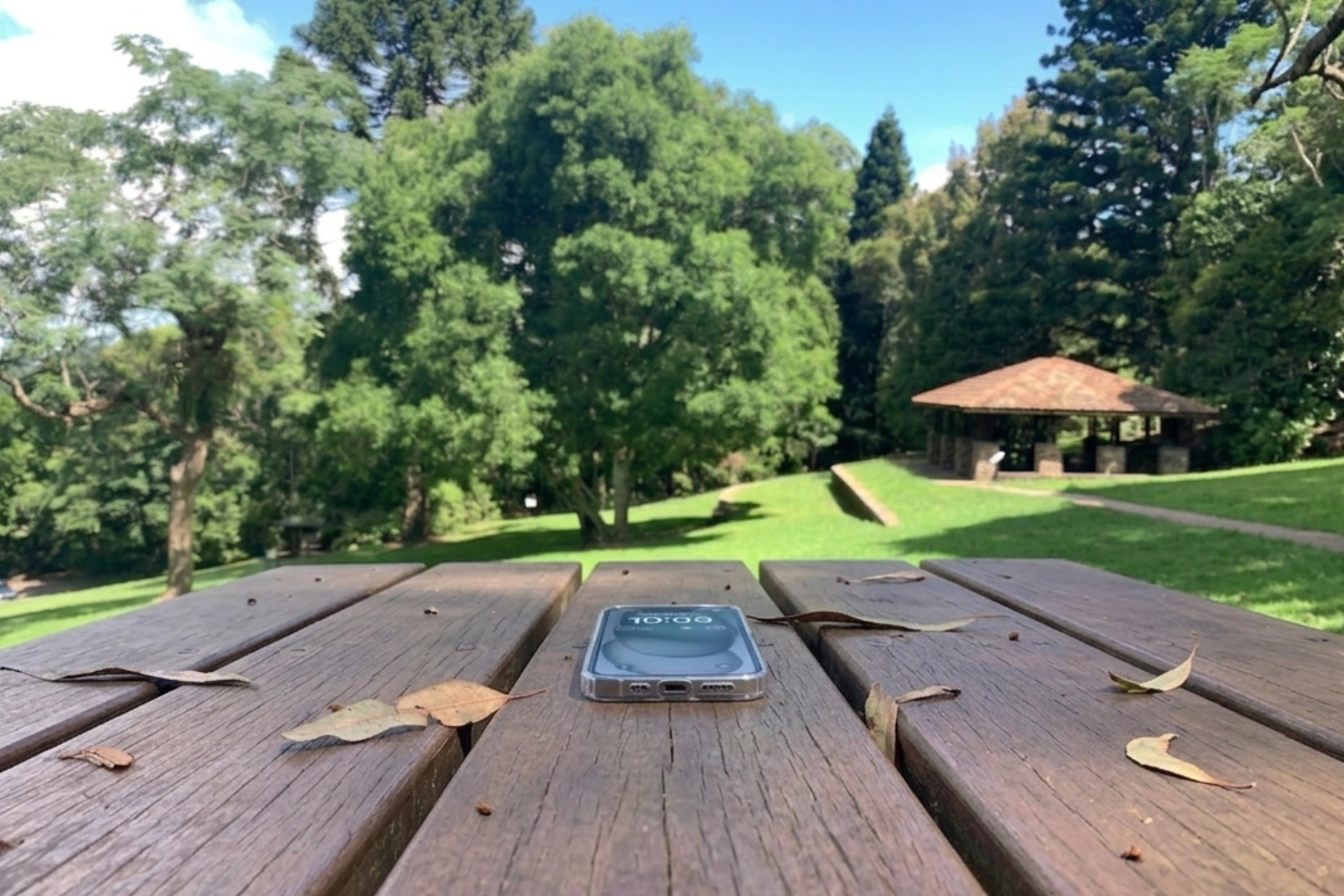

There is nothing quite like the feeling of being at the end of a bush walk, trying to open Google Maps, and realising your iPhone has packed it in. I was sitting at a picnic table at the end of a nice Maiala walk (before the leech incident), when my screen decided it no longer wanted to respond to my touch. The screen was bright and the Home Screen was visible, but I couldn’t swipe to unlock it or even turn the bloody thing off.

When you are out on the road, your phone is your lifeline. It is your map, your camera, and your way to pay for that much needed flat white. If you find yourself in a spot where the touch interface is glitching and you cannot use the slider, you need to know how to turn off iPhone without screen access. It is a simple trick once you know it, but it can feel like a disaster when you are standing in the middle of a busy street with a useless piece of glass in your hand.
Why your iPhone screen stops working in the heat
Before we get into the fix, it is worth looking at why this happens to us travellers so often. If you have been walking or hiking in the Northern Territory, sitting on a beach in Western Australia or sitting by a pool in Stonehenge Gully, the heat is often the main culprit. iPhones are sturdy, but they do not like the direct Aussie sun.
When an iPhone gets too hot, the software can lag or the hardware can stop registering your touch. I have seen it happen when a phone sits on the dashboard of the ute for too long. If the screen is glitching because of heat, the first thing you should do is move to a cooler spot, grab a cold energy drink, and let the device temperature drop before you try to force it to restart.
Step by step guide: How to turn off iPhone without screen using buttons
If the screen is still frozen after it has cooled down, you have to use the physical buttons to force a shutdown. This is officially called a Force Restart. It does not delete your photos or data; it simply cuts the power and forces the operating system to boot up fresh.
Here is exactly how to turn off iPhone without screen for all modern models (iPhone 8, iPhone X, iPhone 11, 12, 13, 14, 15, and 16):
- Press and quickly release the Volume Up button. This is the top button on the left side of your phone.
- Press and quickly release the Volume Down button. This is the bottom button on the left side.
- Press and hold the Side button. This is the large button on the right side of the phone.
- Keep holding that Side button even when the “Slide to Power Off” slider appears on the screen. Since your screen is glitching, you cannot use that slider anyway.
- Wait for the screen to go black. Do not let go yet.
- Release the button only once the Apple logo appears on the screen.
I found that timing is everything here. You have to be quite snappy with the volume buttons. If you press them too slowly, the phone might just think you are trying to change the volume or take a screenshot.
Dealing with older iPhone models
If you are still rocking an older model like an iPhone 7 or a 6s while you travel, perhaps as a backup phone for local SIM cards, the process is slightly different.
- For iPhone 7: Press and hold both the Volume Down button and the Sleep/Wake (Side) button at the same time. Keep holding them until you see the Apple logo.
- For iPhone 6s or earlier: Press and hold both the Home button and the Top (or Side) button until the Apple logo shows up.
What to do if the force restart fails
Sometimes, a simple force restart is not enough to fix a major glitch. If you have followed the steps above and the phone still refuses to behave, you might have a deeper hardware issue. This happened to one of my older phones just after returning from Vietnam one time. The screen had a tiny crack that I didn’t notice, and the humidity from the trip to let just enough moisture in to kill the touch sensors.
If you are near a major city like Sydney, Melbourne, or Brisbane, your best bet is to find an Apple Store or an authorised repair centre. However, if you are out in the sticks, you might have to try some of these “MacGyver” solutions:
- Clean the screen thoroughly: Sometimes a bit of salt spray from the ocean or dust from a dirt road can mess with the sensors. Use a microfibre cloth (or a clean cotton shirt if you are desperate) to wipe it down.
- Remove your screen protector: If you have a tempered glass protector that has lifted or cracked, it can cause ghost touches or dead zones. Carefully peeling it off might restore your touch function.
- Plug it into a power source: Sometimes low voltage from a dying battery can cause the interface to lag. Plug it into a wall outlet (not just a weak car charger) and give it twenty minutes before trying the force restart above again.
Using a computer to manage a glitchy phone
If you have a laptop with you on your travels, you can try to shut the phone down or back it up via a cable. When you plug your iPhone into a Mac or PC, you can often see the device in Finder or iTunes.
While this won’t turn off the phone in the traditional sense if the touch is broken, it allows you to perform a software update or a restore, which can sometimes clear out the glitches. Just keep in mind that if you haven’t trusted that computer before, you might be stuck, as you usually need to tap Trust on the iPhone screen to connect to it.
Final thoughts on fixing a frozen iPhone
Learning (and remembering) how to turn off iPhone without screen access is one of those digital survival skills every traveller needs. It takes the stress out of a situation that feels like an expensive disaster. Most of the time, that simple button combination is all it takes to get your maps back up and running so you can find your way to the next campsite or hidden beach.
I also suggest making sure your iCloud backup is turned on every night when you are on Wi-Fi at a hotel. That way, if the screen glitch turns out to be a permanent hardware failure, you haven’t lost all those incredible sunrise and sunset photos from your trip.
If by this time you think there is no return for your old phone, you can start to looking to update it and get a new one. If you’re looking for quick delivery you can go past Amazon to get a new phone to you fast.
Here’s links to Buy a new iPhone or Purchase a New Samsung Phone or if you are just looking for a phone, no particular brand, have a look here Buy a Mobile Phone.
Have you ever had your phone pack it in while you were in the middle of nowhere?
